The Picture Transfer Protocol (PTP) facilitates remote operations on a camera connected computer. Typical operations are uploading/downloading photos and remote captures.
Most cameras support some basic operations over PTP, but often only in a limited fashion. For example, downloading of files can be limited to just JPEG files.
The PTP extension for CHDK discussed in this article does not alter the standard operations but adds new CHDK-specific operations instead. This is due to the complexity involved in altering or complete overwriting the standard operations. It also means that special tools are required to access this new functionality.
The PTP extension is available over USB on all CHDK supported cameras, and over PTP/IP on cameras with WiFi hardware.
If you want simple control over the camera without USB a protocol connection (for example, using a micro-controller or RC equipment) see USB Remote. Note the USB remote option must be disabled to use the PTP Extension over USB.
Related forum thread: CHDK PTP interface
Functionality
An overview of the functionality available through the PTP interface is described below. The specific functionality and usage depends on which client application you use. The canonical reference to the CHDK PTP protocol is core/ptp.h in the CHDK source tree.
File transfer
Files can be uploaded to and downloaded from any part of the file system.
Script execution
The PTP interface allows execution of lua scripts sent over PTP. In general, any scripting function available to normal CHDK scripts can be executed remotely. See CHDK Scripting Cross Reference Page for a list of CHDK script functions. There are some additional functions specific to PTP, described in Lua/PTP Scripting.
Some of the features available using Lua scripts include
- Switch to and from record mode
- Switch recording modes, e.g. Av, Tv, Video
- Adjust exposure parameters, focus, zoom etc.
- Shoot pictures or video
- Manipulate Canon menus and settings with simulated key presses
- List, create and delete files and directories
- Return values from script, send and receive arbitrary messages between the camera and PC
- Shutdown or reboot the camera
Remote display
CHDK 1.1 added support streaming the contents of the camera LCD display over PTP. (revision 1921 and later)
Remote shooting
CHDK 1.2 added support for saving images directly over USB, without saving on the SD card. This is supported for raw and DNG on all cameras, and for jpeg on some cameras. For raw and DNGs capturing a subset of rows from the raw framebuffer is also supported. CHDK 1.5 added support for Canon raw on cameras with native raw support.
Debugging features
- Read and write camera memory
- call arbitrary camera functions
LibUSB Driver for Windows
All the client applications below require libusb-win32 driver on Windows. Note, it is strongly recommended that you use the Zadig installer described below, rather than using the libUSB package directly.
Installing LibUSB using Zadig
Zadig is recommended, especially on Windows 8 and later which restrict the use of unsigned drivers. To install libusb using this tool:
- Download the appropriate file for your OS from http://zadig.akeo.ie/
- Connect the camera via USB
- If you have never connected the camera before, wait for Windows to install its default driver
- Run zadig_2.X.exe
- Click Options > List All Devices
- Select in the dropdown (usually Canon Digital Camera)
- If you have multiple Canon cameras, make sure only one is connected and powered on
- You can edit the name to allow identifying the driver later
- Be sure you have the camera selected. If you select the wrong device, the device you selected may become unusable until you remove the driver. The existing driver should be something like WUDFRd on Win7 or WUDFWpdMtp on Win10. The USB ID should be 04A9 for a Canon camera, and the second part will be the PID of your camera.
- Select libusb-win32 by clicking the up/down arrows in the Driver box
- Click Replace Driver
- Restart the camera before attempting to access it with a CHDK client. There is no need to restart your PC.
Related forum post [1]
Removing the LibUSB driver
To remove the driver installed by Zadig or the INF wizard
- Open device manager
- Select View - Show Hidden Devices
- Find the driver under libusb-win32 Devices
- Right click and select and uninstall
- Check "Delete the driver software for this device" and click OK
- Windows will re-install the default driver the next time you connect the camera
Installing LibUSB Manually
If you are using an OS prior to Windows 8.1 and don't want to use Zadig, you can install libusb manually instead.
- Windows 8 users should read the following guide: How to install an unsigned driver on Windows 8
- Download the latest binary release from here
- Extract archive
- Connect camera via USB and turn on in Play mode
- Let Windows install its built-in driver if not already installed
- Run \bin\inf-wizard.exe from extracted archive
- Select your camera from the list of attached USB devices
- Hit Next and save the resulting INF file to a new folder
- Hit Install Now...
- It should appear in Device Manager as libusb-win32 devices > Canon Digital Camera
- No PC reboot is needed
LibUSB Notes
- Installing the LibUSB driver normally prevents you from accessing the camera with standard windows software, so when it is installed, you will need to use one of the CHDK client programs to download files. If you want to go back to standard software, see the removal instructions above.
- The installed driver is specific to the selected model. If you use more than one camera model with CHDK PTP clients, you may need to install a driver for each one.
- Depending on the camera, the driver installation may be specific to the particular physical USB port. In this case, plugging the camera into a different port will allow you to access the camera using normal windows software. This probably applies to older cameras (vxworks?)
- You may be able to get the filter driver to work on some OSes (XP) but the Zadig or INF wizard driver is strongly recommended.
Client applications
As described above, a client program compatible that implements the CHDK protocol is required to access these features.
chdkptp
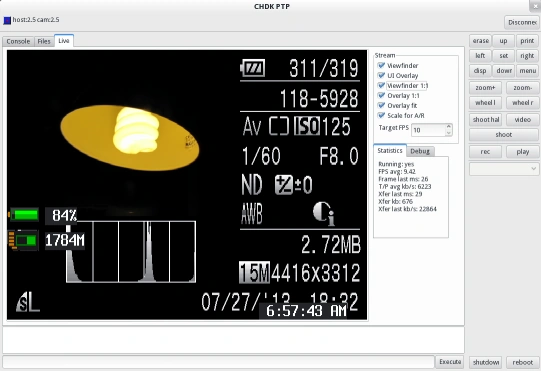
chdkptp is a client created specifically for controlling CHDK cameras. As of 2021, it's the recommended client for most use cases. It provides CLI and optional GUIs based on IUP and LGI. Both USB and PTP/IP are supported.
chdkptp also provides a Lua API for the CHDK protocol on the PC. Because the GUI and CLI are also implemented in Lua, this makes chdkptp easy to extend and enables end users to implement complex interactions with code on the camera.
CHDK 1.1 remote display and CHDK 1.2 remote capture are supported.
Source and builds are available on the chdkptp assembla project. A thread in the chdk forum is available for support and discussion.
Build instructions are available in README.TXT in the source. Usage information is available in USAGE.TXT.
The chdkptp code was originally based on the CHDK fork of ptpcam, but it does not use the same commands or command line options.
For information about using chdkptp with PTP/IP, see README-WIFI-PTPIP.TXT.
Platforms
chdkptp is developed for MS Windows, Linux on x86/x64 and raspberry pi.
Additional Platforms
MacOS
MacOS is not a primary platform, but chdkptp is known to build and run under versions up to MacOS 12. See README-MACOS.TXT in the source for more information. Patches, comments and corrections welcome. As of 2021, the LGI GUI can be used on MacOS.
Other Linux ARM platforms
The armv7l and aarch64 builds may work on other arm linux distros, especially those which are based on Debian. Building from source should be straightforward on normal Linux distros. Reports are welcome.
Work is also on its way to get as least the CHDKPTP CLI running on an ODroid XU board and a BeagleBone Black. Help to make that a reality is appreciated, more information here :
and
Arch Linux
chdkptp package is available from AUR, see package page.
Platform specific usage notes
Windows
On windows 10, you should install the libUSB driver with Zadig, as described above. You may need to re-install after major windows updates. On older windows versions, if you haven't installed with Zadig, you might need to disable the "Canon Camera Access Library" service (or, if that doesn't work, the "WIA" service) to get CHDK clients to work properly.
Linux
chdkptp on Linux is normally invoked using a shell script called chdkptp.sh or chdkptp_gui.sh. Where documentation and examples on this page refer to chdkptp, substitute the appropriate shell script name.
Make sure you've got access to USB; in some cases this means switching to root (or changing permissions). See the section titled "Permissions issues" in https://app.assembla.com/spaces/chdkptp/wiki/Install or https://chdk.setepontos.com/index.php?topic=6231.msg89252#msg89252 for additional details.
If your distro's default configuration accesses the camera on connect, this may put the camera in a state where some functionality (such as switching to shooting mode) is not available, or prevent CHDK clients from accessing the camera. The camera screen generally goes black when this happens. See title "Interactions with default software" in https://www.assembla.com/spaces/chdkptp/wiki/Install for additional information. This is typically caused by the gphoto2 auto mounter, which is included by default on many distros (Ubuntu and Raspberry Pi OS, for example) when a graphical desktop environment is installed. You can update the udev rules as described, or for a quick and dirty one-off, killing the offending task at the Linux command line (or in a shell script) with killall /usr/lib/gvfs/gvfs-gphoto2-volume-monitor may also work. On many cameras, it is also possible to exit the black screen state using the commands described in the FAQ section below.
General chdkptp usage notes
The file USAGE.TXT included in the chdkptp distribution contains an overview, command descriptions, and some examples. The help command can be used to get usage details for chdkptp commands. Some additional documentation is available from the chdkptp assembla pages
When using chdkptp, it's important to be aware of the difference between chdkptp CLI commands, CHDK script functions, and chdkptp Lua script.
- chdkptp CLI commands are defined in the chdkptp program. They often involve complicated interactions with script on the camera under the hood, but in chdkptp, they are a single command entered in the CLI, with options described in the chdkptp help.
- CHDK script functions are implemented in CHDK, and run on the camera. A common use of chdkptp is to call single functions or short snippets of CHDK script, using the commands described below. CHDK script functions are listed on CHDK Scripting Cross Reference Page.
- chdkptp Lua script runs in chdkptp and is used script or add functionality to the chdkptp program.
The luar and lua CLI commands are used in chdkptp to run camera side script directly. Because they are frequently use, these are available as the one-character shorthand commands = and . respectively.
The exec (shorthand !) CLI command is used to run chdkptp Lua script.
Quoting in chdkptp commands
Except for the lua, luar and exec commands, any option or filename provide to a chdkptp command must be quoted if it contains spaces. For example, to to use remoteshoot and specify the file be saved to a directory with a space in the name, you must use
remoteshoot "c:/some/path with spaces"
Using chdkptp from the command prompt
A common use case for chdkptp is to execute several commands from the command prompt or a batch file or shell script, using the -e command line option. For example, to connect, put the camera in shooting mode, shoot a picture, and then download pictures, one could use
chdkptp -c -erec -eshoot -eplay -eimdl
If the chkdptp command used with -e has options or otherwise includes spaces, the entire command with all options should be a single -e option, quoted as necessary for your OSes shell / command interpreter to treat it as a single word, like
chdkptp -c -e"shoot -tv=1/64"
This is separate from the quoting required chdkptp itself described above. If required, chdkptp quoting must be protected from interpretation by the shell, like
chdkptp -c -e"remoteshoot -dng '<path>'"
The specific quoting rules for the command line invocation depend on your operating system and shell. Many chdkptp command options which can include the $ character, which must also be protected from shells commonly used on Linux and Mac. The ! character is also significant to some shells, using exec instead is recommended for command line usage.
File paths
chdkptp accepts forward slash ('/') as a directory separator on all platforms, and also uses it for camera paths. On windows, this is recommended over using backslash ('\') which may be interpreted as an escape character in some case.
As described above, paths with that include spaces generally need to be quoted.
Paths on the camera have camera dependent limits. In general, it's safest to use 8.3 names, avoid deeply nested directories, and avoid characters other than simple alphanumerics.
Other notes
- Each remote CHDK Lua command sent to the camera - for example:
luar return get_mode()- is a single script. All buttons are released when the script ends, so don't try to press (or half-press) a button in one command line, then assume it's still pressed in a following line. You can string multiple commands together on a single line, like this:uar press('shoot_half') repeat sleep(10) until get_shooting() return get_dofinfo(), get_bv96() - Overrides (examples:
iso_set_real,set_sv96set_tv96_direct) must generally be used in the same script that does the shot, and they are applied on the first half press after the call, or immediately, if the camera is already in halfpress. Therefore they must be issued in the same chdkptp (lua / luar / =) command line as the shoot. - CHDK ISO override works by putting the camera in auto-ISO mode and then setting the auto value, so you should expect to see AUTO ISO in the tags rather than the actual ISO used for exposure.
- Prior to build 1518, chdkptp shoot commands did not restore the previous focus mode. So if you used rs -sdmode=MF ... the camera would stay in MF mode until you called set_mf(0) or a different -sdmode. In builds from 1518 on, the previous mode is restored by default, but the -sdkeep option can be used to get the old behavior.
GUI Live View
The chdkptp live view uses the same data that drives the Canon LCD or EVF. Therefore, the live view may stop updating or display garbage if the LCD is turned off. For example, on A640 the display and sensor are turned off when the display is folded with face against the camera. The sensor is also usually turned off when when the display is turned by the Canon power saving function or DISP key. The live view generally shows old data in these cases.
Note that the CHDK script function set_lcd_display generally does not turn off the sensor.
When shooting, the live view often shows random garbage. This is normal, caused by the camera using the frame buffer for other purposes while shooting.
On many cameras, if the camera is started with video selected in playback mode, it does not appear on the live view.
ptpcam
Download:
- 1) download and install libusb (see install instructions above)
- 2) go here (German CHDK forum topic on the development of ptpcam with CHDK extensions)
- 3) download ptpcam_Vx.x.zip at the end of the first message.
The version of ptpcam available in the forum link has CHDK extensions added to communicate to the CHDK code on your camera. This is a derivative of the official ptpcam available at http://libptp.sourceforge.net/ (the CHDK extensions are not included in the official version of ptpcam).
If you are comfortable writing batch scripts (or perl/python/... scripts) for your PC, ptpcam can be used to download jpg files and upload lua scripts and execute CHDK lua scripts on your camera all while your camera is carefully lined up on your subject and mounted to a tripod (when, for most Canon cameras, removing the memory card is not possible).
Keep in mind the fact that commands sent to your camera via ptpcam will take more time to complete than it takes for ptpcam to return control to your script. So make sure that after you issue a ptpcam --chdk="blah blah" command, that you have inserted a delay in your (batch file, perl, ...) script running on your PC to give the camera time to finish its business before you go poking the camera again.
See PTP Extension/ptpcam Examples for some examples.
A version of ptpcam is maintained in the chdkde source tree, with builds available from the chdkde forum (download ptpcam_Vx.x.zip). The ptpcam executable may be built for Windows or Linux.
ptpCamGui
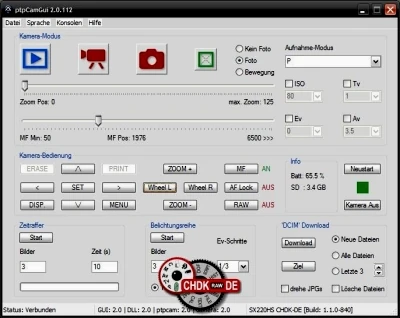

PtpCamGui
ptpCamGui is a graphical front end for ptpcam. Builds are available from the chdkde forum It's also part of CHDK Shell.
A forum thread including descriptions can be found here.
The source code for the frontend and the DLL is available on the ptpCamGui assembla project.
ptpCamGui is only available for Windows.
English translation of instructions for using can be found here. Note that despite coming from a German site, both English and German languages are supported in the same .exe and are set automatically (based on your Windows installation language setting).
First time users note that the big red camera icon is used both to enter camera mode and to shoot (when radio buttons to right select "Photo").
gPhoto
gPhoto has included some support for CHDK extensions since version 2.4.11.
FAQ
- The computer does not recognize the camera at all, CHDK client software does not connect.
- Make sure USB Remote is disabled.
- The Canon firmware does not recognize key presses (real or from script) when PTP is connected
- There are two known workarounds:
- Switch to record mode using switch_mode_usb script function. Keys will still be enabled if you switch back to play.
- For many cameras, a LogicalEvent can be used to unlock the keyboard. For DryOS, use post_levent_to_ui(4484). For VxWorks, use post_levent_to_ui(4420). In chdkptp, the unlock command sends the appropriate event.
- The camera crashes after using remote shooting and switching back to play mode.
- This is a known issue on some cameras, see User:Nafraf/RemoteShootIssues and http://chdk.setepontos.com/index.php?topic=11481.0. In chdkptp, the remoteshoot -filedummy option can be used to avoid this.
- Switching to shooting mode fails, and the camera screen goes black when you plug in the USB cable.
- This is usually the issue described in the Linux section, caused by default Linux software accessing the camera on connect. It can also happen on windows if you don't use Zadig or the INF driver.
- On many cameras, a LogicalEvent or the chdkptp unlock command can be used exit this state. For DryOS, use post_levent_to_ui(4482). For VxWorks, use post_levent_to_ui(4418). This event also unlocks the keyboard. On some cameras, a subsequent switch to rec will fail with the lens extending but the camera returning to play mode. In this case, a shutter half press may fully switch to rec
- As of CHDK 1.6 build 5815, switch_mode_usb attempts to send this event automatically when required.
- Download/upload fails with code 0x2ff or the camera crashes when you try to transfer a file
- Perhaps you didn't correctly specify the file on the camera. Always use the full path and start with a capitalised 'A'. For example: "download A/DCIM/100CANON/IMG_1234.jpg test.jpg"
- note this mainly applies to ptpcam, chdkptp corrects the names for you.
Development history
The original PTP Extension was contributed by mweerden. At mweerden's github one can find the original sources as well as a follow-up attempt at a minimal version for inclusion in the SVN trunk. The proposal version, with some minor modifications, has been included in CHDK trunk since changeset 957 and has been enabled for all cameras since changeset 1116
ewavr made additional contributions, including the first "live view" functionality and GUI client. You can find files related to this work on ewavr's site.
The full history can be found in the PTP development thread on the forum.