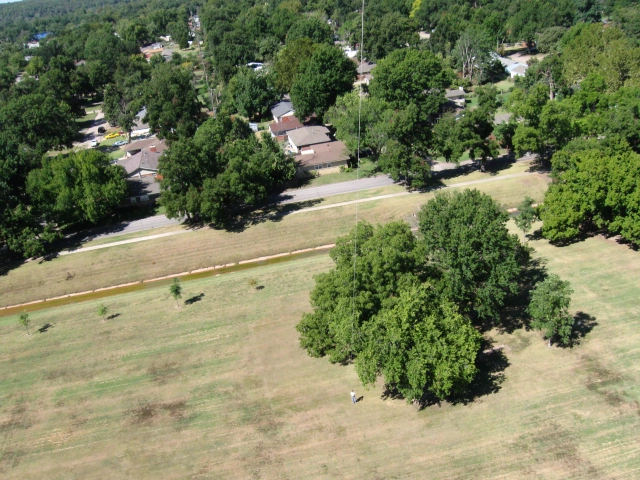
This page describes an intervalometer script designed for use in KAP (Kite Aerial Photography) & UAV (Unmanned Aerial Vehicle) applications. It may also be useful for balloon photography.
Current Release : v4.0 (effective 2019APR17)
Download Link : KAP & UAV Script Download Link
Download md5sum : 65e0edd5fa07987ccbc6f2085eb54a77
Forum Thread : CHDK Forum Thread for KAP_UAV script
Release History : Release History
As of October 2016, the script had been downloaded more than 6668 times.
Overview
The KAP Exposure Control Lua script in an intervalometer script that automatically controls shutter speed, aperture, ND filter, and ISO settings so as to maintain the fast shutter speeds needed in kite aerial photography (KAP) and unmanned aerial vehicle photography (UAV). With these applications, the camera is almost always moving, and resulting motion blur is often a big obstacle to getting sharp pictures. Simply setting the shutter speed to a fixed fast value may not allow enough flexibility when lighting conditions are variable. This script actively manages all exposure inputs in order to keep the shutter speed fast, but will allow slower speeds if necessary to get proper exposure.
Features
- intervalometer with user defined shooting interval
- sophisticated exposure calculations for optimal kap / uav images with user defined preferred values and ranges for Tv, Sv, Av settings
- exposure bracketing
- continuous shooting mode for shot rates faster than once per second (camera model dependent)
- configurable for cameras with or without adjustable iris or ND filter
- interleaving of video and still images
- camera's internal ND filter can be enabled to engage in high brightness situations
- all camera settings are displayed are "real" camera units ( seconds, f-stops, ISO rating) rather than APEX96 values
- startup delay to protect the lens during take-offs
- camera returns to playback mode (lens withdrawn) or completely off after shooting completes
- manual eV offset exposure compensation available
- user selectable focus lock at infinity
- user selectable zoom position
- optional display & backlight off while shooting to save battery power
- optional use of a camera LED that illuminates precisely when the shutter opens for sync with an external device like a flight controller
- various USB remote control options including intervalometer enable/disable, single shot per pulse, or PWM control (via a flight controller output, a gentWIRE-USB2 or the equivalent)
- precision sync of each shot to GPS based "position over the ground" at shot rates 1 fps or better (camera dependent) when using a pixhawk (or equivalent) UAV flight controller
- detailed logging with 10 mSec resolution of start of each shot (useful for geomapping applications)
On Screen Display
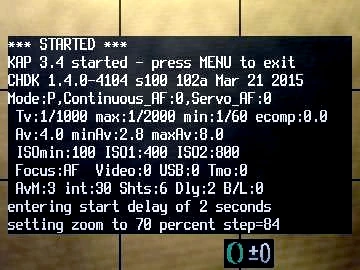

Script startup showing initial values selected.
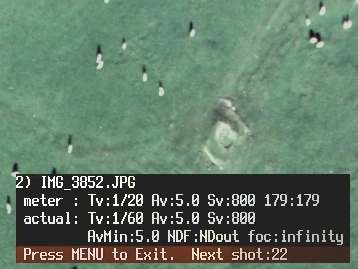

Second shot - note metered vs calculated values used.
Camera Settings
The following are some recommended setting for the various options in the Canon menus (in shooting mode). As each camera is a little different, some settings may not exist or may have slightly different wording.
- Camera mode in "P" or Program (not Auto, M, SCN, or Live)
- ISO in Auto
- Continuous AF Off (setting the camera in P mode will automatically turn this off on cameras without this menu option)
- AF Frame not in Tracking AF
- Servo AF Off
- Safety MF Off
- IS Mode Off (may not be necessary for KAP but should be off for UAV)
- Review Off
- Lens retract 0 sec.
Setting Focus at Infinity
The script uses the latest manual focus capability released in CHDK 1.3.0 to automatically focus at infinity if so configured. Note that despite considerable effort, not every camera will focus well at infinity under script control. Some camera models are even reported to have variation between individual cameras. So some experimentation may be required to confirm how well this setting works on any particular camera. If the script option for "Focus at Infinity" does not work for your camera, you will need to deselect it and use your camera in autofocus mode.
Note : if focus at infinity mode is selected, the script onscreen log will display a warning message in red & white if the focus does not lock at infinity.
Application Notes
- A loader program is available for cameras with low memory. The loader script will load the kap_uav.lua script in approximately 1/2 of the memory needed to load the script directly. See the links below.
- The script assumes the cameras ND filter effect is the equivalent of three f-stops. Change the value of the variable nd96offset in the script code if this is not the case.
- While the script is running, you can stop it "cleanly" by pressing the MENU key. Pressing any other key will cause the display/backlight to activate for about 10 seconds, allowing you to check the script status.
- This script requires CHDK 1.3.0 (or higher) and build 3810 (or higher)
- As always, CHDK is experimental. It is very stable but it is not perfect. Use at your own risk.
Parameter Setup
Shot Interval
- Specifies the time between shots in seconds.
- values Burst, Fast, 2 - 120 seconds
- default 15 seconds
- Burst shoots in continuous mode - no refocus or exposure changes after the first shot
- Fast cycles full shots as quickly as the camera will go
- Numeric values set the delay between the start of each shot
Shutdown
- Defines how long the script will run before halting.
- values 1 - 240 minutes ( 0 = forever)
- default 0 (forever)
- values 1 - 240 minutes ( 0 = forever)
Total Shots
- Defines how many shots the script will take before halting.
- values 1 - 10,000 ( 0 = infinite )
- default 0 (infinite)
Power off when done?
- Causes the camera to completely power off when the total shot count or time limit is reached. If not selected, the camera will go into playback mode when the total shot count is reached ( and retract the lens if configured correctly in the Canon menus).
- default Disabled
Display Off?
- Turn off LCD display and backlight either on script start or after a 30 second delay. Press any keyboard key to re-enable.
- Note : you must disable the Shot Review function in the Canon shooting menu for this to work properly!
- values No Yes Delayed
- default No
Start Delay Time
- Allows a delay at script start before shooting starts - giving time for the kite or UAV to reach a desired altitude.
- values 0 - 10000 seconds
- default 0
Exposure Bracketing
Causes three exposures to be taken per shot with specified exposure offsets (in f-stops)
- values Off, +/-0.33, +/-0.66, +/-1.00, +/-1.33, +/-1.66, +/-2.00
- default Off
Exposure Compensation
- Works like the built-in Canon exposure compensation, allowing the exposure reading to be offset by up to two f-stops.
- values -2 to +2 f-stops ( in 1/3 f-stop increments)
- default 0.0
Zoom position
- Specifies the position to set the zoom lens at the start of shooting.
- range Off, 0-100% in 10% steps
- default Off
Focus @ Infinity
- Script will attempt to set focus at infinity (using AF, AFL, or MF modes if available on the camera). This function may not work with all cameras - some experimentation may be necessary
- values No Yes
- default No
See the Setting Focus at Infinity section above.
Tv Min
- Defines the lowest shutter speed that will be used. Note that the algorithm will not try to go below this value to get the correct exposure, possibly resulting in underexposed images that will need to be fixed in post processing. Used to prevent motion blurr when the illumination is poor.
- values None, 1/60 to 1/640 sec
- default None
Target Tv
- Defines the desired shutter speed - usually set to a fast shutter speed like 1/1000 sec
- values 1/100 sec to 1/5000 sec
- default 1/1000 sec
- Note : selecting a Tv setting higher than your camera can achieve could result in over exposed pictures.
Tv Max
- Defines the maximum shutter speed that will be used before the ND filter (if present) is inserted. Note that the algorithm may try to go above this value to get the correct exposure as a last resort, depending on CHDK's ability to extend the shutter speed.
- values 1/1000 to 1/10000
- default 1/2000 sec
- Note : selecting a Tv setting higher than your camera can achieve could result in over exposed pictures.
Lowest Av
- Used to define the lowest aperture setting to be used.
- values f1.8 to f8.0
- default f2.8
- only used for cameras with adjustable apertures
Target Av
- Defines the desired Av setting (usually the lens sharpness "sweet spot")
- values f1.8 to f8.0
- default f4.0
- only used for cameras with adjustable apertures
Highest Av
- Defines the maximum usable Av setting
- values f1.8 to f8.0
- default f8.0
- only used for cameras with adjustable apertures
ISO Min
- Defines the lowest ISO sensitivity value to use
- values 80 100 200 400 800 1250 1600
- default 100
ISO Max1
- Defines the maximum ISO to be used during "normal" shooting.
- values 100 200 400 800 1250 1600
- default 400
ISO Max2
- Defines the ISO value to be used when the ISO Max1 value cannot be used to achieve correct exposure
- values 100 200 400 800 1250 1600
- default 800
Allow use of ND filter?
- Enabled / disables the script's ability to use the ND filter (if available).
- values No Yes
- default Yes
Video Interleave (shots)
- When enabled, tells the script to switch modes every time the defined number of shots have occurred and record a video segment.
- values Off 1 5 10 25 50 100
- default Off
Video Duration (sec)
- Sets the length of the video recorded in seconds when the Video Interleave option (above) has been selected.
- values 5 - 300
- default 10
USB Shot Control
- Enables the camera's USB port to be used for shooting control.
- None causes the script to ignore the USB port.
- On/Off mode enables & disables intervalometer shooting when USB power is applied/removed.
- OneShot mode takes one picture each time the USB power is pulsed.
- GntWire works with the gentwire-usb2 device from Gentles (http://www.gentles.ltd.uk/gentwire/Manual-usbc2.pdf )
- Pixhawk works with UAV flight controllers like a Pixhawk (see http://tuffwing.com/support/pixhawk_camera_trigger_cable.html)
- values None / On/Of / OneShot / GntWire / Pixhawk
- default Off
USB Timeout (secs 0=off)
- A timeout value when using USB Shot Control. If no USB activity happens after the specified duration, the camera will swith to playback mode (and immediately retract the lens in setup correctly in the Canon menus). Camera will return to shooting mode on the next USB port activity.
- values Off=0, 1 - 240 seconds
- default 0s
Logging
- Specifies where log message go.
- values Off Screen SDCard Both
- default Both
Exposure Calculation Algorithm
For a camera with no ND filter and no adjustable iris (the "Tv-only" case), the script works as follows :
- the script meters the scene and determines if the picture can be properly exposed using your target Tv (1/1000 second) with ISO somewhere in the range of Min (100) to Max2 (800). If that's possible, it takes the picture at the appropriate ISO.
- if the scene brightness is too low with ISO at Max2 (800), it slows the shutter speed from target, enough to get a good exposure.
- if the scene brightness is too high with ISO at Min (100), it raises the shutter speed enough to get a good exposure, which may be above your maximum setting (1/2000).
For a camera with an ND filter but no adjustable iris :
- the script performs the TV-only calculation described in A above
- if the resulting shutter speed is above your Max setting (1/2000), it inserts the ND filter, lowers the meter reading by three stops, then does the Tv-only calculation again.
For a camera with an adjustable iris, but no ND filter, the script works as follows:
- The script meters the scene, and determines if the picture can be properly exposed using your target Tv (1/1000 second) and your target Av (f/4.0), with ISO somewhere in the range of Min (100) to Max1 (400). If that's possible, it takes the picture at the appropriate ISO.
- If scene brightness is too low with ISO at Max1 (400), it lowers the f-stop setting as needed, down to your Min setting (f/2.8).
- - If still more exposure is needed, it raises the ISO, up to your Max2 setting (800).
- - If still more exposure is needed, it slows the shutter speed below target to get a good exposure.
- If the scene brightness is too high with ISO at Min (100), it raises the shutter speed, up to your Max setting (1/2000).
- - If exposure is still too high, it raises the f-stop, up to your Max setting (f/8.0).
- - If exposure is still too high, it raises shutter speed above your Max setting to get a good exposure.
For a camera with both an adjustable iris and an ND filter, the script works as follows:
- The script withdraws the ND filter, then performs the iris-only calculation described in C above.
- If the resulting shutter speed is above your Max setting (1/2000), it inserts the ND filter, lowers the meter reading by three stops, then does the iris-only calculation again.
Note that in very high scene brightness, the algorithm may yield a shutter speed higher than your Max setting, and even higher than your camera's highest nominal setting. Under CHDK such fast shutter speeds may indeed work, but may not be reflected in the EXIF data for the picture (which may only go up to about 1/2000 second). If that occurs, the log data will reflect the actual settings at which the picture was taken.
Also remember that for cameras with an iris, if you use the zoom settings to zoom in to any amount, your camera's minimum f-stop will go up. The script will automatically adjust your minimum and target Av settings if needed. This may be the explanation if your EXIF aperture data shows higher f-stops than your settings call for and you are using zoom.
Release History
- v1.1 on Oct 10 2013 - initial release
- v1.2 on Nov 21 2013 - minor changes to USB mode and focus at infinity operations
- v1.3 on Dec 08 2013 - fixed handling of ND filter on cameras without adjustable apertures
- v1.4 on Dec 15 2013 - adds a minimum Tv setting to limit the slowest shutter speed that the script can use. Also adds an option to power the camera off when the specified shot count is complete.
- v1.5 on Dec 21 2013 - converted from set_backlight() to set_lcd_display() to turn off the display
- v1.6 on Jan 25 2014 - camera placed in playback mode when USB control is enabled and USB power is not presen
- v2.2 on Mar 22 2014 - adds video recording, more robust and simplified focus at infinity, autodetect of ND filter and adjustable aperture, ND filter enable/disable,
- v2.3 on Mar 30 2014 - adds focus unlock & relock when switching to video mode and back
- v2.4 on Apr 19 2014 - changed timing for more precise shot intervals
- v3.0 on May 30 2014 - added new USB control modes for intervalometer, single shot per pulse, and PWM input control mode
- v3.1 on June 14, 2014 - small change to increase reliability of focus at infinity (after setting zoom) and fix for text string error is Ev comp script parameter.
- v3.2 on July 27, 2014 - allow Tv target to be set higher (useful for UAV's with vibration problems)
- v3.4 on Mar 19, 2015 - simplified focus at infinity, several small bug and performance fixes, 10 mSec resolution shot timestamp, improved USB control modes, shutdown after specified interval
- v3.4b on May 2 2015 - modified so that the LCD is turned off during any user specified startup delay if Backlight Off mode is enabled.
- v3.4c on May 3 2015 - reverted default USB PWM timing to use 10 mSec precision rather than 1 mSec ( but still using high precision timer mode )
- v3.4d on May 20 2015 - fixes to make video interleave mode work more reliably on older (slower) cameras.
- V3.5 on May 25 2015 - small UI changes ( delayed vs immediate display off), precision PWM measurement values now adjust for user changes via script parameter, focus @ infinity now tries for AFL, MF and then AF (AF used to be first but this is slower)
- V3.6 on Sept 26 2015 - multiple changes to USB pwm code to enable flight controller sync'd shooting based on GPS position over the ground, adds continuous mode shooting for higher fps, adds exposure bracketing. Also allows the optional use of a camera LED that illuminates precisely when the shutter opens (for sync with an external device like a flight controller).
- V3.7 on Feb 6 2016 - added "lens temperature" to log entry created with each shot
- V3.8 on Jun 4 2016 - fixed bug where using USB control disables screen off functionality and added improved LED sync code to create shorter "on time" for syncing with pixhawk flight controller
Links
link > Tuffwing UAV Setup Instructions : Pixhawk Setup to work with kap_uav.lua
link > KAP form thread for kap_uav.lua : KAP Forum Thread
links> DIY Drones Form
link > Article about Canon image stabilization issues : Lets Talk Canon Cameras
link > ecology drones setup video : Bixler 2 Photography Setup
link > Archived Script : kap_uav v3.6 Loader for Cameras with Low Memory
link > Archived Script : KAP & UAV Exposure Control Script V1